> ## Documentation Index
> Fetch the complete documentation index at: https://v2.opencode.ai/llms.txt
> Use this file to discover all available pages before exploring further.
# Intro
> Get started with OpenCode.
These docs are for the beta version of OpenCode, which will become OpenCode 2.0. The beta is still changing: we may
wipe your data, things may break, and APIs, configuration, and plugin APIs may change.
[**OpenCode**](https://opencode.ai) is an open source AI coding agent. It's available as a terminal-based interface or
desktop app.
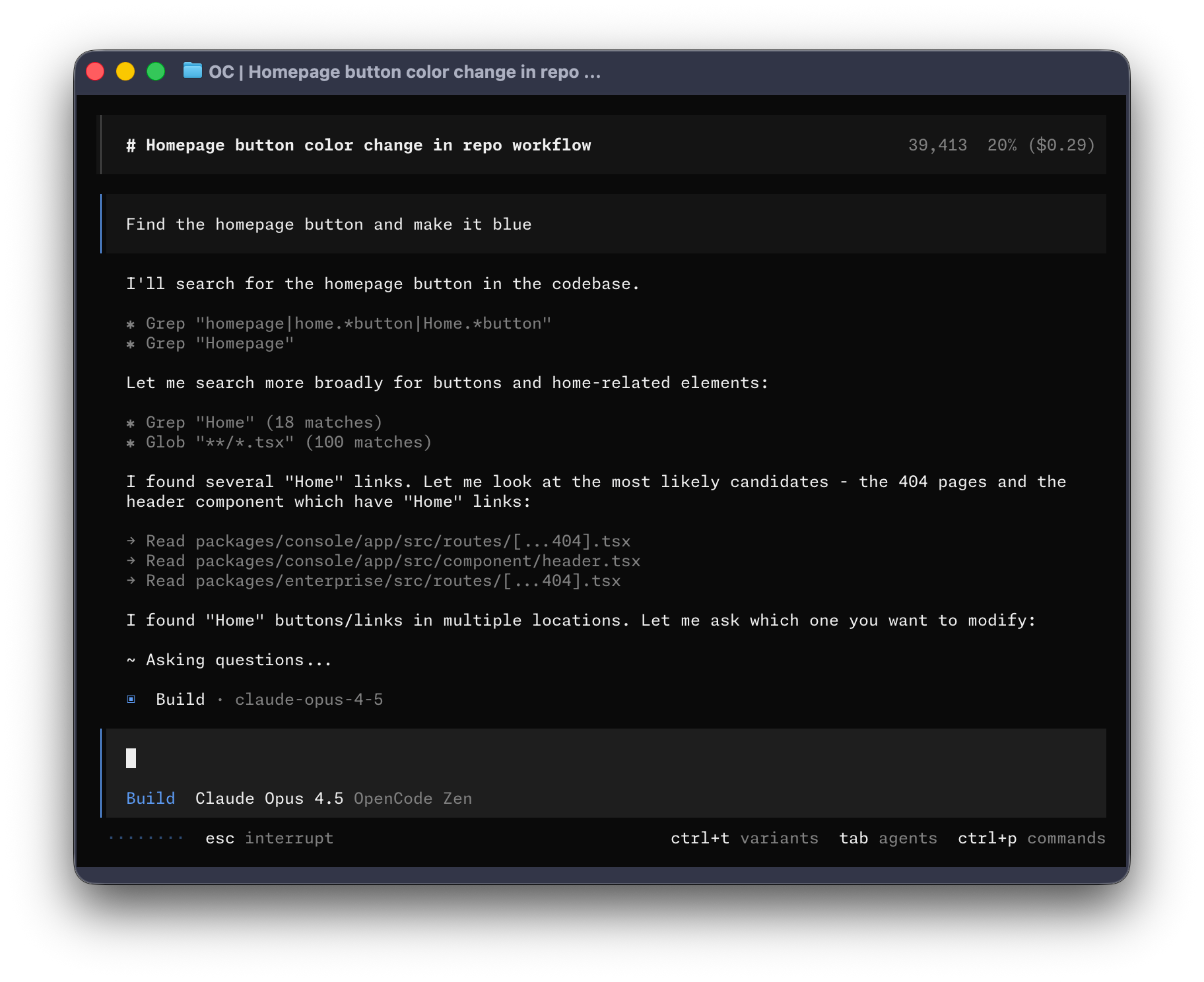 Let's get started.
***
#### Prerequisites
To use OpenCode in your terminal, you'll need:
1. A modern terminal emulator like:
* [Ghostty](https://ghostty.org), Linux and macOS
* [WezTerm](https://wezterm.org), cross-platform
* [Alacritty](https://alacritty.org), cross-platform
* [Kitty](https://sw.kovidgoyal.net/kitty/), Linux and macOS
2. API keys for the LLM providers you want to use.
***
## Install
The curl install script is not available in beta.
You can also install it with the following package managers.
```bash theme={null}
npm install -g @opencode-ai/cli@next
```
```bash theme={null}
bun install -g @opencode-ai/cli@next
```
```bash theme={null}
pnpm install -g @opencode-ai/cli@next
```
```bash theme={null}
yarn global add @opencode-ai/cli@next
```
During beta, the executable is named `opencode2`.
### Homebrew
Homebrew installation is not available in beta.
### Arch Linux
Arch Linux installation is not available in beta.
### Windows
For the best experience on Windows, install [Windows Subsystem for Linux
(WSL)](https://learn.microsoft.com/windows/wsl/install), open your Linux distribution, and use one of the beta package
manager commands above.
Chocolatey installation is not available in beta.
Scoop installation is not available in beta.
Mise installation is not available in beta.
Docker installation is not available in beta.
Standalone binaries are not available in beta.
***
## Connect
With OpenCode you can use any LLM provider by configuring its API key.
Run `/connect` in the TUI and select your provider.
```text theme={null}
/connect
```
If you'd like easy access to all the best coding models you can try out
[OpenCode Console](https://console.opencode.ai).
You can also try [OpenCode Go](https://opencode.ai/go) a \$10/month subscription
plan that grants you access to the best open source models.
Use `/models` to browse the providers and models available to your project. See [Providers](/providers) for connection and
configuration details.
***
## Usage
You are now ready to use OpenCode in your project. Here are a few common workflows.
### Ask questions
Ask OpenCode to explain your codebase.
Use `@` to fuzzy search for files in the project.
```text theme={null}
How is authentication handled in @packages/functions/src/api/index.ts
```
### Add features
Ask OpenCode to add a feature by describing the desired behavior and providing relevant context.
```text theme={null}
When a user deletes a note, flag it as deleted in the database.
Create a screen that shows recently deleted notes.
From this screen, the user can restore a note or permanently delete it.
```
Give OpenCode plenty of context and examples.
### Undo changes
Use `/undo` when a change isn't what you wanted.
```text theme={null}
/undo
```
OpenCode stages a conversation revert and restores your original message so you can revise it. In a Git repository, it
also restores file changes when snapshots were captured successfully. Run `/undo` multiple times to move the conversation
boundary back, or use `/redo` to restore the staged conversation and files. See [Undo](/snapshots) for
limitations and safety details.
```text theme={null}
/redo
```
***
## Customize
Make OpenCode your own by [picking a theme](https://opencode.ai/docs/themes), [customizing
keybinds](https://opencode.ai/docs/keybinds), [configuring formatters](/formatters), [creating commands](/commands), or
editing the [OpenCode config](/config).
Let's get started.
***
#### Prerequisites
To use OpenCode in your terminal, you'll need:
1. A modern terminal emulator like:
* [Ghostty](https://ghostty.org), Linux and macOS
* [WezTerm](https://wezterm.org), cross-platform
* [Alacritty](https://alacritty.org), cross-platform
* [Kitty](https://sw.kovidgoyal.net/kitty/), Linux and macOS
2. API keys for the LLM providers you want to use.
***
## Install
The curl install script is not available in beta.
You can also install it with the following package managers.
```bash theme={null}
npm install -g @opencode-ai/cli@next
```
```bash theme={null}
bun install -g @opencode-ai/cli@next
```
```bash theme={null}
pnpm install -g @opencode-ai/cli@next
```
```bash theme={null}
yarn global add @opencode-ai/cli@next
```
During beta, the executable is named `opencode2`.
### Homebrew
Homebrew installation is not available in beta.
### Arch Linux
Arch Linux installation is not available in beta.
### Windows
For the best experience on Windows, install [Windows Subsystem for Linux
(WSL)](https://learn.microsoft.com/windows/wsl/install), open your Linux distribution, and use one of the beta package
manager commands above.
Chocolatey installation is not available in beta.
Scoop installation is not available in beta.
Mise installation is not available in beta.
Docker installation is not available in beta.
Standalone binaries are not available in beta.
***
## Connect
With OpenCode you can use any LLM provider by configuring its API key.
Run `/connect` in the TUI and select your provider.
```text theme={null}
/connect
```
If you'd like easy access to all the best coding models you can try out
[OpenCode Console](https://console.opencode.ai).
You can also try [OpenCode Go](https://opencode.ai/go) a \$10/month subscription
plan that grants you access to the best open source models.
Use `/models` to browse the providers and models available to your project. See [Providers](/providers) for connection and
configuration details.
***
## Usage
You are now ready to use OpenCode in your project. Here are a few common workflows.
### Ask questions
Ask OpenCode to explain your codebase.
Use `@` to fuzzy search for files in the project.
```text theme={null}
How is authentication handled in @packages/functions/src/api/index.ts
```
### Add features
Ask OpenCode to add a feature by describing the desired behavior and providing relevant context.
```text theme={null}
When a user deletes a note, flag it as deleted in the database.
Create a screen that shows recently deleted notes.
From this screen, the user can restore a note or permanently delete it.
```
Give OpenCode plenty of context and examples.
### Undo changes
Use `/undo` when a change isn't what you wanted.
```text theme={null}
/undo
```
OpenCode stages a conversation revert and restores your original message so you can revise it. In a Git repository, it
also restores file changes when snapshots were captured successfully. Run `/undo` multiple times to move the conversation
boundary back, or use `/redo` to restore the staged conversation and files. See [Undo](/snapshots) for
limitations and safety details.
```text theme={null}
/redo
```
***
## Customize
Make OpenCode your own by [picking a theme](https://opencode.ai/docs/themes), [customizing
keybinds](https://opencode.ai/docs/keybinds), [configuring formatters](/formatters), [creating commands](/commands), or
editing the [OpenCode config](/config).